

Share your event
All plans
Open your event and click Share. Pick the link you want to share, then copy it, tap a share button such as WhatsApp or Email, copy the ready-made invite message, or download a QR code to print.
Video transcript
Here's how to share your event: with a link, your favourite apps, a ready-made message or a QR code.
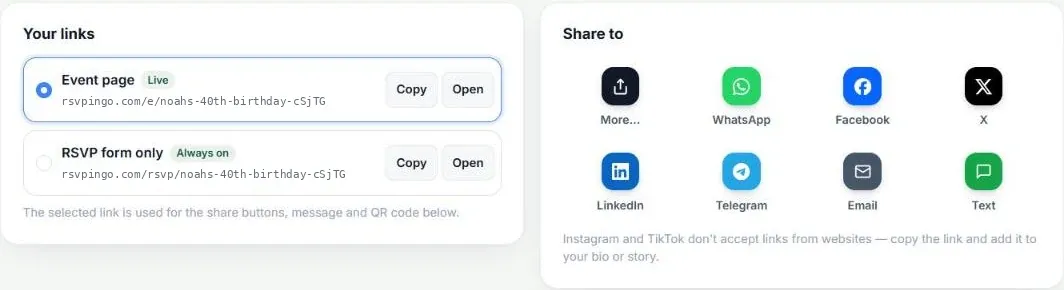
Open your event and click Share. Choose which link to share: your full event page, or just the RSVP form.
Copy it, or use the buttons to send it straight to WhatsApp, Facebook, X, LinkedIn, Telegram, email or text.
Prefer to write your own? Copy the ready-made invite message, download a QR code to print, or add calendar links.
You can even add an RSVP button to your own website, by copying the HTML.
You'll find the step-by-step guide at help.rsvpingo.com.
Share a link
Section titled “Share a link”-
Open your event and click Share in the menu on the left, or the Share button in the top bar.
-
Under Your links, select the link to share:
- Event page for your full website. It must be Live.
- RSVP form only for just the form. It’s Always on. See Event page or RSVP link?
-
Click Copy and paste it anywhere, or use a button under Share to.
Share to apps
Section titled “Share to apps”| Button | What happens |
|---|---|
| More… | Opens your phone’s or computer’s share menu |
| WhatsApp, Telegram | Opens a chat with your link ready to send |
| Facebook, X, LinkedIn | Opens a new post with your link |
| Opens your email app with the link | |
| Text | Opens a text message with the link |
Instagram and TikTok don’t accept links from websites. Copy your link and add it to your bio or story instead.
Copy the invite message
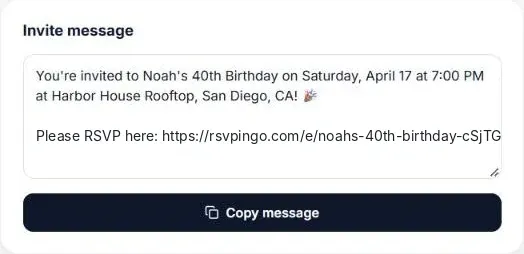
Section titled “Copy the invite message”The Invite message is written for you from your event’s name, date, time and venue, with your link at the end. Edit it if you like, then click Copy message and paste it into any chat.
Download a QR code
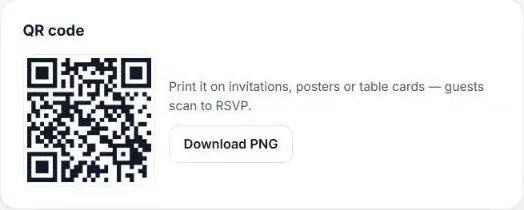
Section titled “Download a QR code”Under QR code, click Download PNG. Print it on invitations, posters or table cards. Guests scan it with their phone camera to open your link.
Calendar links
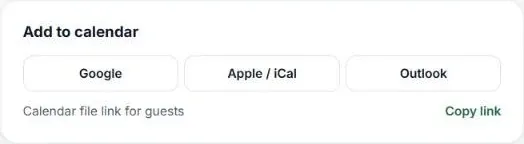
Section titled “Calendar links”Under Add to calendar, click Google, Apple / iCal or Outlook to add the event to your own calendar. Click Copy link to share a calendar file link with guests so they can save the date.
Add an RSVP button to another website
Section titled “Add an RSVP button to another website”Have your own website or blog? Under Website button, click Copy HTML and paste the code into your site. It adds a button, in your event’s colour, that opens your event page.
Good to know
Section titled “Good to know”- Anyone with your link can open it and reply, even if your event is Private. Private only stops the page being found or listed. See Publish your event and set privacy.
- If you change your web address, links and QR codes you’ve already shared use the old address.