

Ask AI about your guests
Premium
Click Ask AI on your Guest List, on the Guest list card on your event’s Overview, or Write it with AI in Emails. Type a question about your guests, or ask for an email draft. Ask AI answers from your guest list and never sends anything itself.
Video transcript
Here's how to ask AI about your guest list, in plain English.
Click Ask AI on your guest list, or Write it with AI in Emails.
Ask a question, like: who hasn't replied yet? How many people are coming, plus-ones included? Or, does anyone have dietary needs?
It can draft emails too, such as a friendly reminder to everyone who hasn't replied. You review every draft, and nothing is sent from here.
Type any question in the box and click Ask. Ask AI is included in Premium.
You'll find the step-by-step guide at help.rsvpingo.com.
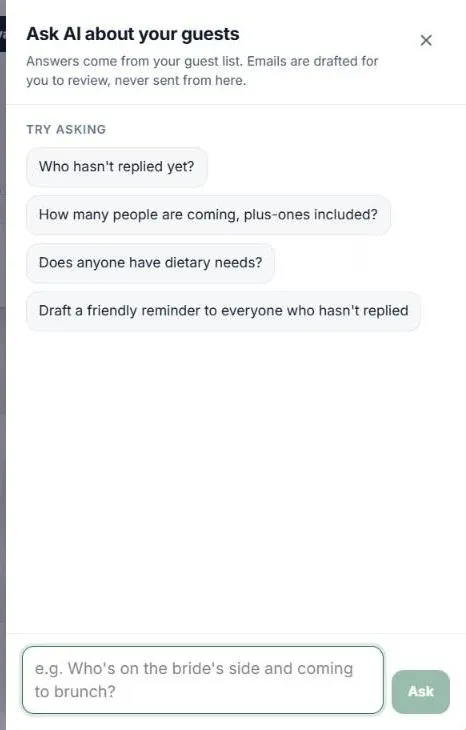
Ask a question
Section titled “Ask a question”-
Open your event and click Ask AI. You’ll find it on the Guest List page and on the Guest list card on the Overview.
-
Click a suggested question, or type your own.
-
Read the answer. Ask a follow-up if you need more detail.
Things you can ask
Section titled “Things you can ask”| Ask | You get |
|---|---|
| Who hasn’t replied yet? | A list of guests still to reply |
| How many people are coming, plus-ones included? | Your headcount |
| Does anyone have dietary needs? | Guests and their answers to your dietary question |
| Who’s bringing a plus-one? | Guests with a +1 |
| Draft a friendly reminder to everyone who hasn’t replied | An email draft for you to review |
Draft an email
Section titled “Draft an email”Ask Ask AI to write a message, such as a reminder, a parking update or a thank-you. Review the draft, edit it, then send it from Emails to the guests you choose.
Good to know
Section titled “Good to know”- Ask AI only looks at this event’s guests and replies.
- It drafts but never sends. You’re always the one who clicks Send.
- AI can make mistakes. Check numbers that matter, such as meal counts, against Catering.
- Ask AI is included in Premium.