

Find your way around an event
All plans
Open an event and you land on its Overview. At the top are the event’s details and status. Below them, a Setup guide lists the next steps for your type of event, followed by live numbers and shortcuts to every part of the event.
Video transcript
Here's a quick tour of your event overview, the home base for everything you plan.
At the top, you'll see your event's name, date and place, with buttons to edit the details or open your live page.
The setup guide picks the steps that matter for your type of event. Do them in any order, or skip what you don't need.
Further down, live counters show who's coming, your replies, check-ins and the waitlist. The guest list shows every reply, with plus-ones.
On the right are your share links, emails and invitations, plus a quick look at your RSVP form.
You'll find the step-by-step guide at help.rsvpingo.com.
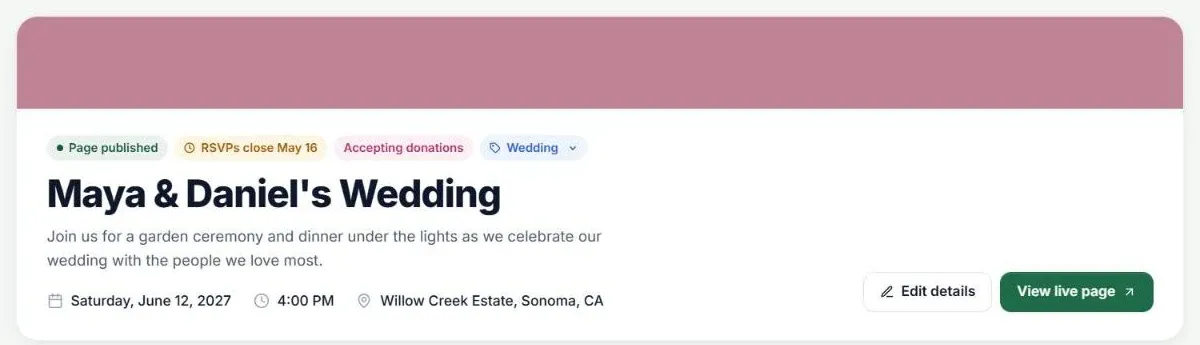
The top of the Overview
Section titled “The top of the Overview”- Badges show the page status, your RSVP deadline, whether you’re accepting donations, and the event type. Click the event type to change it. The type decides which steps appear in the setup guide.
- Edit details opens Details. View live page opens your event page as guests see it.
The setup guide
Section titled “The setup guide”The guide picks the steps that matter for your type of event, such as Choose your RSVP questions, Invite your guests or Seat your guests. Do them in any order.
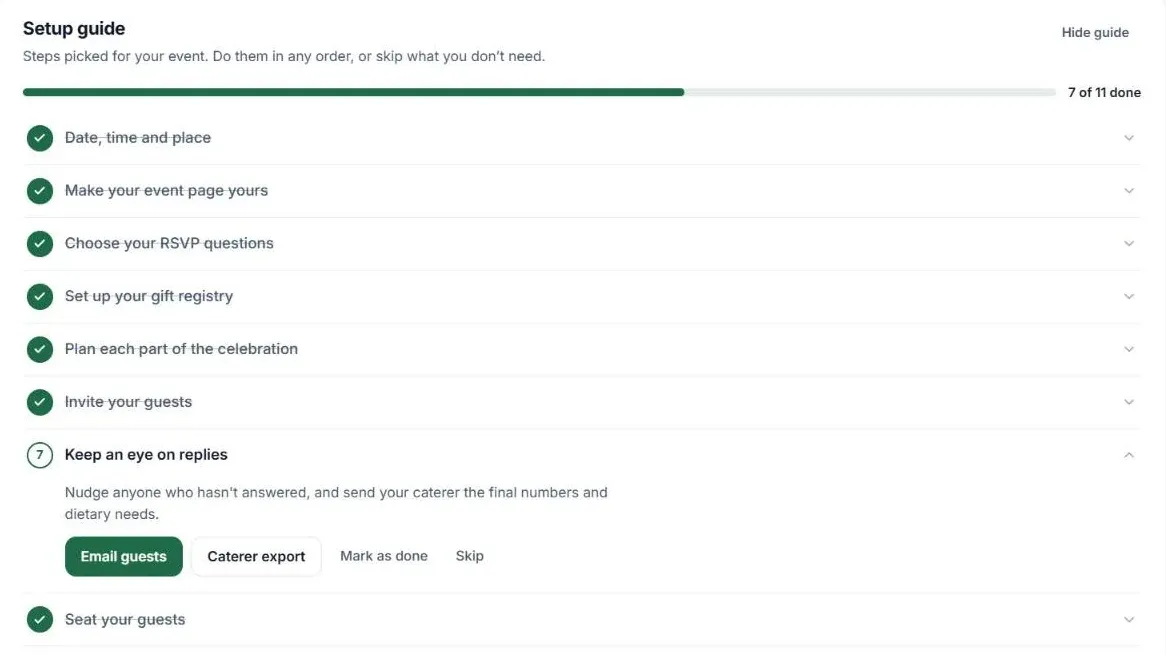
- Click a step to open it. Each step has buttons that take you to the right tool.
- Click Mark as done when you’ve finished it, or Skip if you don’t need it.
- Some steps appear later, for example Get ready for the day shows up a week before the event.
- Click Hide guide to put it away. The number next to Overview in the menu shows your progress, for example 7/11.
Live numbers
Section titled “Live numbers”Four cards show where you stand:
- Guests attending: people coming, including plus-ones, against your guest limit.
- RSVPs: replies, with the number of plus-ones included.
- Checked in: guests who have arrived, once your event starts.
- Waitlist: people who replied after the event filled up.
Below them are cards for the guest list, your RSVP form, sharing, emails, invitations, replies and seating.
The menu
Section titled “The menu”The menu on the left groups the tools by when you’ll use them:
| Group | Tools |
|---|---|
| Manage | Overview, Details, RSVP form, Multi-day, Website, Share, Stationery, Co-hosts |
| Guests | Guest List, Emails, Catering |
| Event day | Seating, Check-in, Photos, Big screen, Live & games, Song requests, Video messages |
| After | Thank-yous, Analytics, Wrapped |
Click Fewer tools at the bottom of the menu to show only the main ones. Open door check-in is always at the bottom, ready for the day.