

Plan a multi-day event
Pro, event passes and Premium
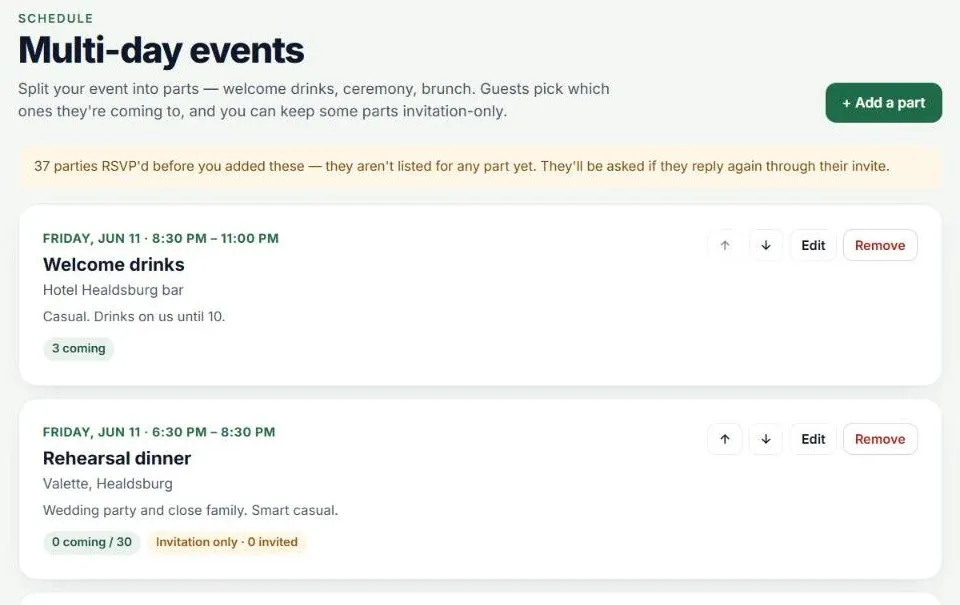
Open your event, click Multi-day, and click + Add a part for each part of your event. Give each one a name, date and times. Guests still use one link and one form, and tick the parts they’re coming to.
Video transcript
Here's how to split your event into parts, like welcome drinks, the ceremony and a farewell brunch.
Open your event and click Multi-day. Each part has its own date, time and place, and guests choose which ones they're coming to.
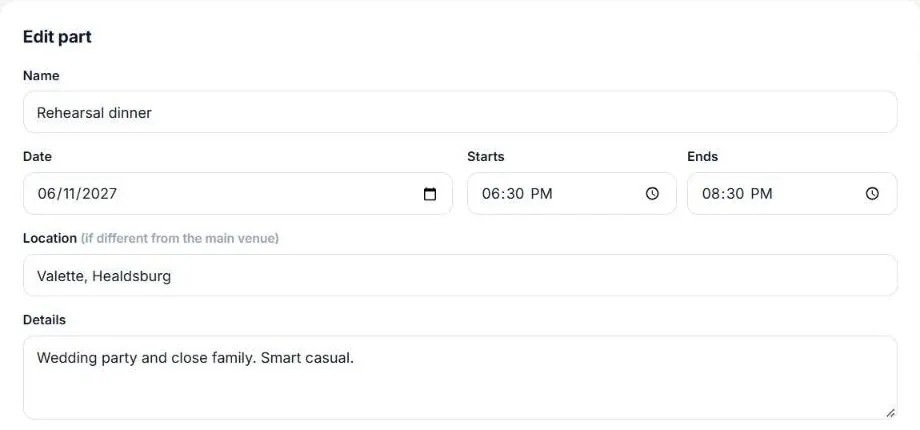
Click Add a part, or Edit on an existing one. Give it a name, a date, start and end times, and a location if it's somewhere else.
You can set a capacity for each part, and switch on Invitation only for parts like a rehearsal dinner. Then pick exactly which guests can see it.
On the RSVP form, guests tick the parts they can make. Multi-day events are included on Pro, event passes and Premium.
You'll find the step-by-step guide at help.rsvpingo.com.
Add a part
Section titled “Add a part”- Open your event and click Multi-day in the menu on the left.
- Click + Add a part.
- Fill in:
- Name, for example Welcome drinks or Day 2: Workshops.
- Date, Starts and Ends.
- Location, if it’s different from the main venue.
- Details, such as the dress code or where to park.
- Capacity (optional), if this part has fewer places than the event.
- Click Save.
- Repeat for each part. Use the ↑ and ↓ arrows to put them in order.
What guests see
Section titled “What guests see”The RSVP form lists the parts the guest is invited to, and they tick the ones they’re coming to. Their answers to your RSVP questions are collected once.
What you see
Section titled “What you see”Each part shows how many people are coming, and its capacity if it has one, for example 4 coming / 60. You can also:
- Email only the guests coming to one part. In Emails, use Coming to. See Email your guests.
- See meal counts for each part in Catering.
Change or remove a part
Section titled “Change or remove a part”Click Edit to change a part, or Remove to delete it.
Good to know
Section titled “Good to know”- Multi-day events are included on Pro, event passes and Premium.
- To keep a part for selected guests only, see Make a part invitation-only.