

Add a gift registry and cash funds
All plans
Open your event, click Website, and add a Gift registry section. Use + Add gift for items from any store and + Add cash fund for money towards something bigger. Guests claim gifts on your page so nobody buys the same thing twice.
Video transcript
Here's how to add a gift registry to your RSVPingo event page.
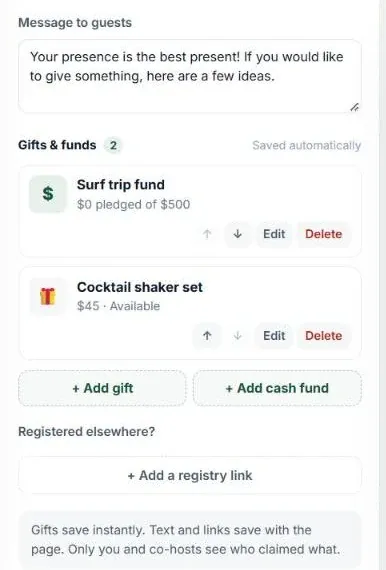
Open your event, click Website, and add a Gift registry section. Give it a heading and a short message for your guests.
Under Gifts and funds, add a gift with a link from any store. Or switch to Cash fund and paste your Venmo or PayPal link, with an optional goal.
Every gift and fund saves the moment you add it. Use the arrows to change the order, or edit and delete them any time.
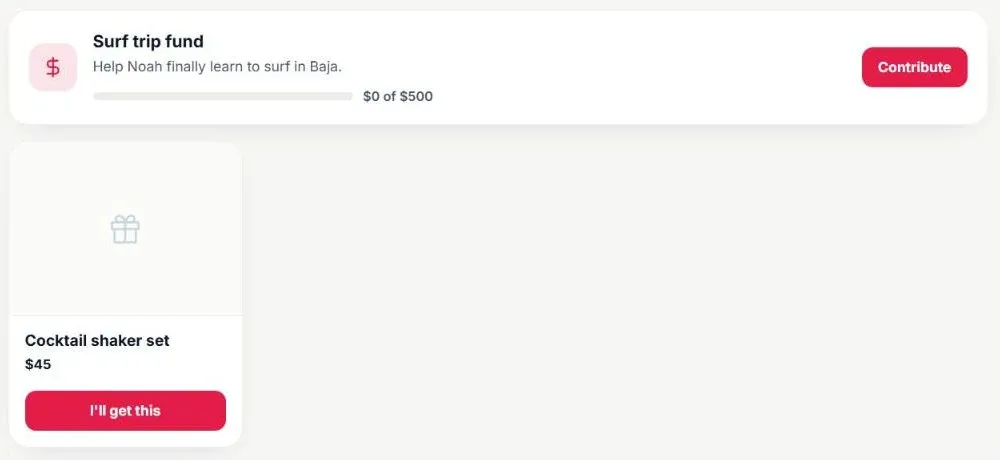
On your event page, guests see each fund with a progress bar, and each gift with an I'll get this button.
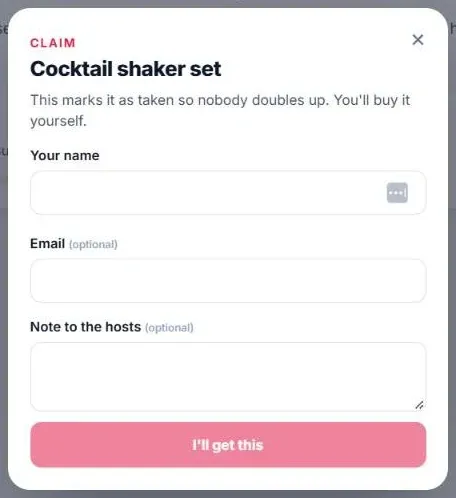
Claiming a gift marks it as taken, so nobody doubles up. Guests buy it themselves, and only you and your co-hosts see who claimed what.
You'll find the step-by-step guide at help.rsvpingo.com.
Set up your registry
Section titled “Set up your registry”-
Open your event, click Website, and on the Content tab click + Add a section, then Gift registry.
-
Write a Heading, an optional Subheading and a Message to guests. For example: Your presence is the best present! If you’d like to give something, here are a few ideas.
-
Click Save so the section is on your page.
-
Add your gifts and funds (see below). Each one saves as soon as you add it.
Add a gift
Section titled “Add a gift”Click + Add gift and fill in:
| Field | What to enter |
|---|---|
| Product link | Paste a link from any store |
| Gift name | What it is, such as Cocktail shaker set |
| Price | Optional |
| Qty | How many you’d like. The gift shows as taken once this many are claimed |
| Image link | Optional picture of the item |
| Note | Optional, such as a colour or size |
Click Add gift.
Add a cash fund
Section titled “Add a cash fund”Click + Add cash fund and fill in:
| Field | What to enter |
|---|---|
| Payment link | Your Venmo, PayPal or other payment page |
| Fund name | Such as Honeymoon or Surf trip fund |
| Goal | Optional. Guests see a progress bar towards it |
| Note | Optional, a line about what it’s for |
Click Add fund.
Link a registry you have elsewhere
Section titled “Link a registry you have elsewhere”Already registered at a store? Under Registered elsewhere? click + Add a registry link and paste the link. Guests see it alongside your own gifts.
What guests see
Section titled “What guests see”- Gifts show their price and an I’ll get this button. The guest enters their name, and optionally their email and a note to you. The gift is marked as taken so nobody doubles up. Guests buy the gift themselves from the store.
- Cash funds show a Contribute button. Guests open your payment page to send money, then click Let them know to tell you their name and amount. The progress bar moves as pledges come in.
Manage your registry
Section titled “Manage your registry”- Each gift and fund shows its status in the editor, such as $45 · Available or $120 pledged of $500.
- Use the arrows to change the order, Edit to change details, and Delete to remove an item.
- Only you and your co-hosts can see who claimed what. Guests only see that a gift is taken.