

Make a seating chart
Pro, event passes and Premium
Open your event and click Seating. Add your tables, then drag each guest onto a seat, or tap a guest and then tap a seat. The counter at the top shows how many guests are seated.
Video transcript
Here's how to make a seating chart for your event.
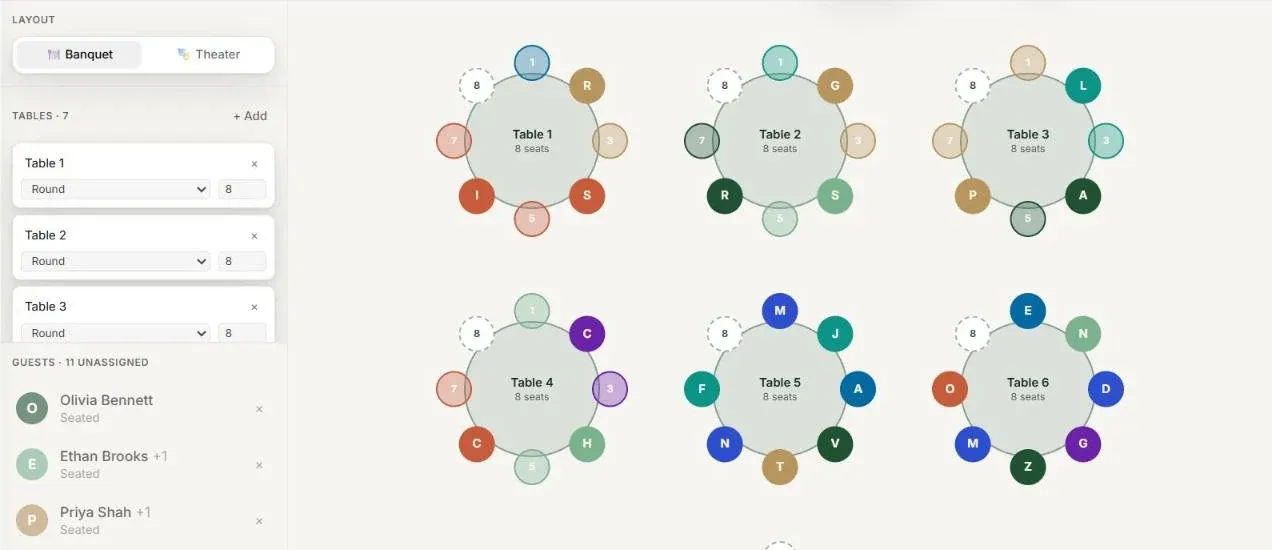
Open your event and click Seating. Choose Banquet for tables, then add your tables and set each one's shape and number of seats.
To seat someone, tap a guest and then tap a seat, or drag them onto it.
Guests with a plus-one take two seats side by side, and the counter at the top shows how many guests are seated.
For a ceremony or a talk, switch to Theater and add rows of seats facing the stage. Switching layouts clears any seats you've assigned, so choose your layout first.
Seating charts are included on Pro, event passes and Premium.
You'll find the step-by-step guide at help.rsvpingo.com.
Set up your tables
Section titled “Set up your tables”-
Open your event and click Seating in the menu on the left.
-
Under Layout, choose:
- Banquet for tables, such as a wedding reception or dinner.
- Theater for rows of seats facing a stage, such as a ceremony or talk.
-
Banquet: click + Add next to Tables. For each table, set the name, the shape (Round or Rectangular) and the number of seats.
Theater: set the Stage label, then add sections with + Rows (set rows and columns) or + Standing.
Seat your guests
Section titled “Seat your guests”- Drag a guest from the list onto any seat, or tap a guest and then tap a seat.
- Move a guest by dragging or tapping them onto another seat.
- Unseat a guest by clicking × next to their name in the list.
- Guests with a +1 need two seats. The seat next to them is kept for their plus-one, shown tinted.
The counter at the top, such as 32 / 56 seated, shows your progress. Guests still to seat are listed as Unassigned.
Where seats show up
Section titled “Where seats show up”- On your event Overview, next to each guest.
- On the Catering sheet, so your caterer knows who sits where.
- At check-in, so you can tell guests where to sit.