

Seat guests with AI
Premium
Open your event, click Seating, then Plan with AI. Add anything it should know, choose whether to keep guests you’ve already seated, and click Suggest a plan. You review the plan before anything changes.
Video transcript
Here's how to fill your tables with AI seating.
Set up your tables first, then click Plan with AI.
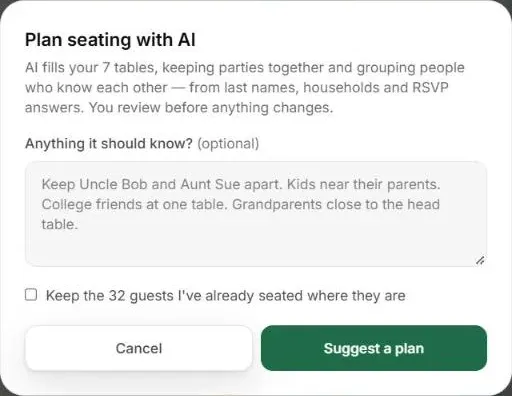
AI fills your tables, keeping parties together and grouping people who know each other, from last names, households and RSVP answers.
Add anything it should know, like who to keep apart, or who should sit near the head table. Tick the box to keep guests you've already seated.
Click Suggest a plan, and review it before anything changes. Then drag anyone you'd like to move. AI seating is included in Premium.
You'll find the step-by-step guide at help.rsvpingo.com.
-
Set up your tables first. See Make a seating chart.
-
Click Plan with AI in the top bar.
-
Under Anything it should know?, add notes in plain English. For example: Keep Uncle Bob and Aunt Sue apart. Kids near their parents. College friends at one table. Grandparents close to the head table.
-
Tick Keep the guests I’ve already seated where they are if you’ve placed some people yourself.
-
Click Suggest a plan, review where everyone is, and apply it if you’re happy.
-
Drag anyone you’d like to move.
How it decides
Section titled “How it decides”The AI keeps each party together and groups people who seem to know each other, using last names, households and RSVP answers. Your notes take priority.
Good to know
Section titled “Good to know”- Make sure you have enough seats for everyone before you start.
- Seat your VIPs, such as the head table, yourself first, then tick Keep the guests I’ve already seated.
- AI seating is included in Premium.