

Send personal email invitations
All plans
Open your event and click Guest List. Add guests one by one or paste a list with Bulk import, then click Send all pending. Each guest gets an email with their own RSVP link, so you can see who has opened it and replied.
Video transcript
Here's how to send personal email invitations, so you know who's opened them and replied.
Open your event and click Guest List. Add a guest's name and email, then choose who's invited: just them, a couple, a group, or a whole household.
For a household, list everyone by name and tick Child for children. Each person can say whether they're coming.
Got a long list? Switch to Bulk import and paste one guest per line. Names without an email become walk-in guests.
Then click Send all pending. Each guest gets their own link, and the counters show how many invitations were sent, opened and answered.
You can invite up to 20 guests per event on Free, 1,000 on Pro and event passes, and 10,000 on Premium.
You'll find the step-by-step guide at help.rsvpingo.com.
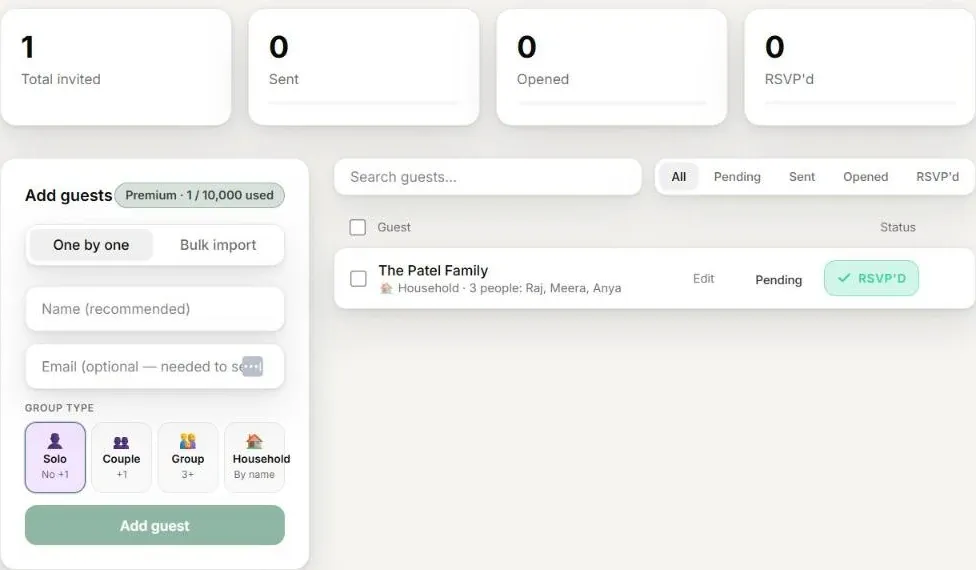
Add guests one by one
Section titled “Add guests one by one”-
Open your event and click Guest List.
-
Under Add guests, make sure One by one is selected.
-
Enter the guest’s Name and Email. The email is optional, but you need it to send an invitation.
-
Choose a Group type:
Type Who’s invited Solo One person, no plus-one Couple The guest plus one Group Three or more people on one invite Household Everyone listed by name -
Click Add guest. The guest appears in the list as Pending.
Invite a household
Section titled “Invite a household”Choose Household to invite a family under one name, such as The Patel Family. Add each person by name and tick Child for children. When they reply, each person ticks whether they’re coming.
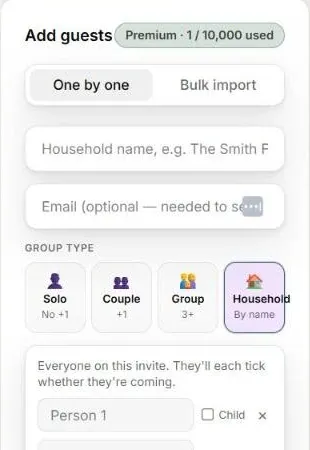
Add many guests at once
Section titled “Add many guests at once”-
Under Add guests, click Bulk import.
-
Paste your list, one guest per line. Any of these formats work:
Sarahsarah@example.comSarah Lee <sarah@example.com>
-
Check the count of valid addresses, then click Import.
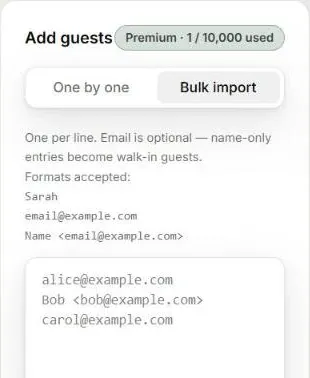
Guests added without an email become walk-in guests: they’re on your list, and you can check them in on the day, but they won’t get an email.
Send the invitations
Section titled “Send the invitations”- Click Send all pending at the top to email everyone who hasn’t been sent an invitation yet.
- Or tick the guests you want and send to just them.
Each email has the guest’s personal link. When they open it, their reply is matched to their invitation, and their status updates.
How many guests you can invite
Section titled “How many guests you can invite”| Plan | Invitations per event |
|---|---|
| Free | 20 |
| Pro and event passes | 1,000 |
| Premium | 10,000 |
The counter next to Add guests shows how many you’ve used, for example 1 / 10,000 used.
Good to know
Section titled “Good to know”- Click Edit on a guest to change their name, email or group.
- Got a reply by phone or in person? Click the guest’s RSVP’d button to mark them as replied.
- To remove an invitation, hover over the guest and click the bin icon.
- You can share your event link as well. Guests who reply through it still appear in your replies, just not linked to an invitation.