

Change your event's name, date and venue
All plans
Open your event and click Details. Change the title, description, dates, times or venue, and click Save. Your event page, RSVP form and guests’ event passes update straight away.
Edit the details
Section titled “Edit the details”-
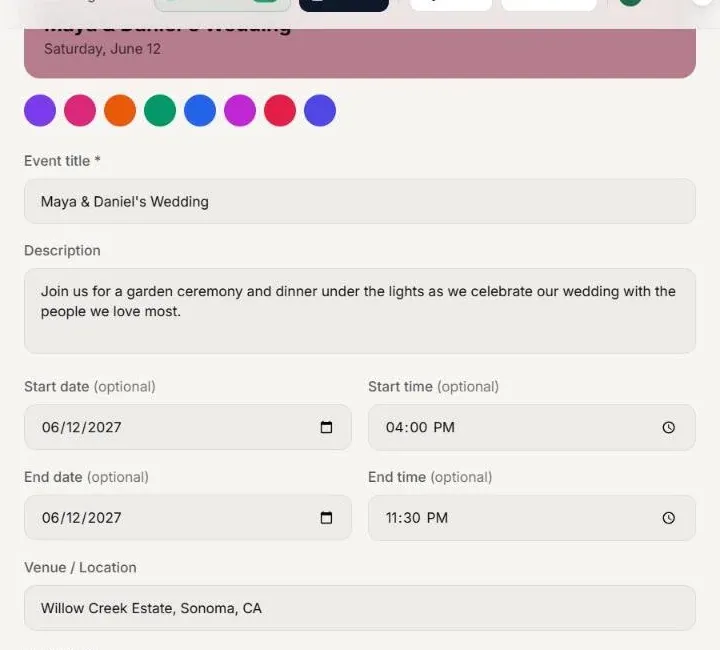
Open your event and click Details in the menu on the left. You can also click Edit details on the Overview.
-
Change any of these:
- Cover colour: pick a swatch at the top. It colours the event’s banner in your dashboard and on simple pages.
- Event title (required).
- Description: a few sentences about the event. It appears on your RSVP form and invitations.
- Start date and Start time.
- End date and End time, for events that run late or over several days.
- Venue / Location: the name and address guests should head to.
-
Click Save.
Dates, times and the venue are all optional. Leave them empty while you’re deciding, and guests see Date to be announced until you add them.
Change the event type
Section titled “Change the event type”The event type, such as Wedding, Birthday or Corporate / Conference, is shown as a badge at the top of the Overview. Click it to pick another type. The type decides which steps the setup guide suggests and which templates come first.
Good to know
Section titled “Good to know”- Lower on the same screen you set your guest limit, plus-ones, RSVP deadline and donations.
- If the date, time or place changes after you’ve sent invitations, let guests know with an email. See Email your guests.