

Set up an event with Build with AI
Premium
On your dashboard, click Build with AI. Describe your event the way you’d tell a friend, then click Build my event. In about a minute, RSVPingo creates the event with its details, RSVP questions and a designed page, ready for you to check and change.
Video transcript
Here's how to set up a whole event with AI, from one short description.
On your dashboard, click Build with AI.
Describe your event like you would to a friend: who it's for, when and where, roughly how many people, and anything special you have planned.
Then click Build my event. AI sets up your event page with photos and an FAQ, RSVP questions that fit the occasion, and the guest tools you asked for.
Everything it creates is a starting point. Review the page, change anything you like, and publish when you're ready. Build with AI is included in Premium.
You'll find the step-by-step guide at help.rsvpingo.com.
Build an event
Section titled “Build an event”-
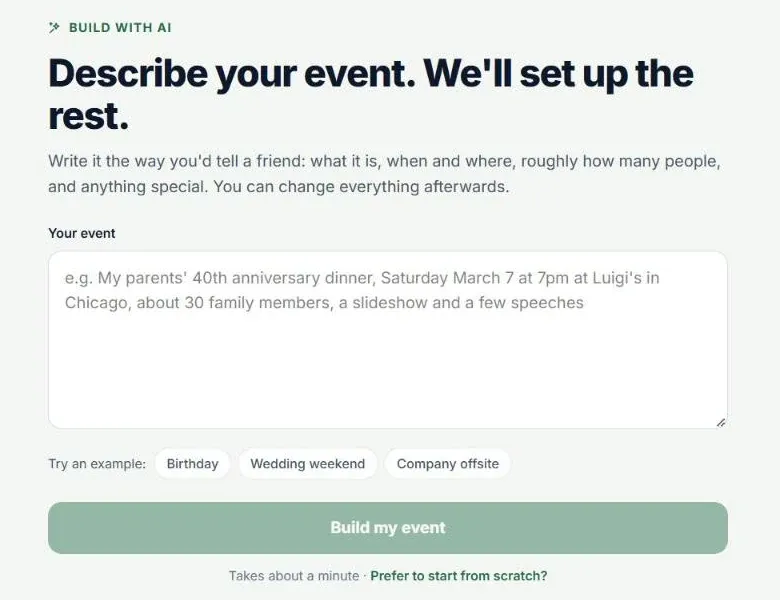
On your dashboard, click Build with AI. You can also click Or describe it and let AI set up everything on the new event screen.
-
In Your event, describe it: what it is, when and where, roughly how many people, and anything special. For example: “My parents’ 40th anniversary dinner, Saturday March 7 at 7pm at Luigi’s in Chicago, about 30 family members, a slideshow and a few speeches.”
Not sure where to start? Click an example: Birthday, Wedding weekend or Company offsite.
-
Click Build my event.
-
Check what was set up and change anything you like. Everything stays editable.
What gets set up
Section titled “What gets set up”Depending on your event, RSVPingo can set up:
- Event details, date and place
- RSVP questions that fit the occasion
- A designed event page with photos
- Gift registry ideas, when gifts are customary
- A guest photo album and song requests
- A thank-you email for the morning after
- A multi-day schedule, live games and seating tables
- Video messages from guests
Tips for a good result
Section titled “Tips for a good result”- Give times, not just dates. “Ceremony at 4, dinner at 6:30” becomes a proper schedule.
- Mention the practical things guests ask about: parking, dress code, children, gifts.
- Say roughly how many people are coming, so the guest limit and seating make sense.
Good to know
Section titled “Good to know”- Build with AI is on the Premium plan.
- Prefer to set things up yourself? Click Prefer to start from scratch? under the button. See Create your first event.