

Email your guests
Pro, event passes and Premium
Open your event and click Emails. Choose who to send to, write a subject and a message, and click Send email. Each guest gets their own copy in their inbox, so nobody sees anyone else’s address.
Video transcript
Here's how to email your guests: all of them, or just the ones you pick.
Open your event and click Emails. Start with a template, like a reminder the day before, or write your own.
Choose who it goes to: everyone, guests who are coming, those who haven't replied, the waitlist and more. You can even filter by an answer, or by part of a multi-day event.
Check the subject and message, then click Send email. It goes from your event's own mail address.
After the event, a thank-you email with your photo wall goes out automatically the next morning. Add a personal note if you like. Emails to all guests are included on Pro, event passes and Premium.
You'll find the step-by-step guide at help.rsvpingo.com.
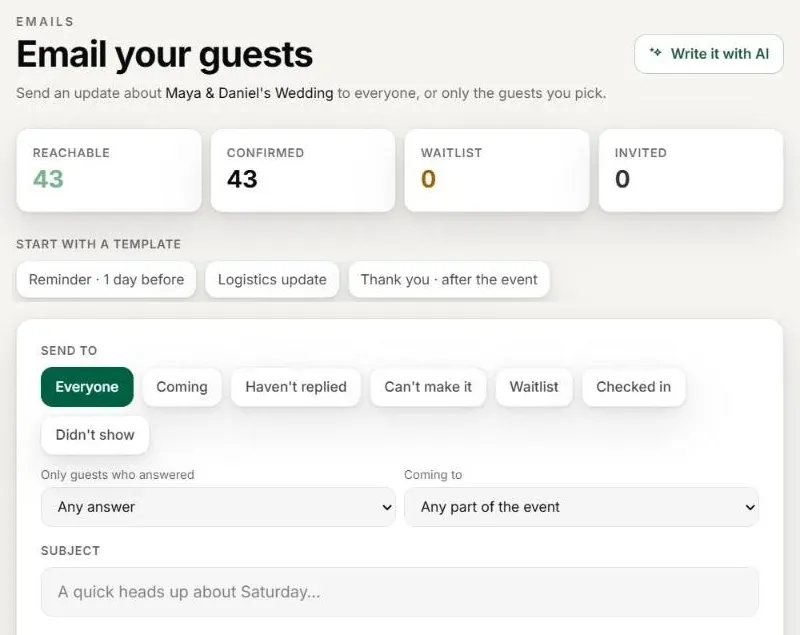
Send an email
Section titled “Send an email”-
Open your event and click Emails in the menu on the left.
-
To start from a ready-made message, pick a template: Reminder · 1 day before, Logistics update or Thank you · after the event. Or write your own.
-
Under Send to, choose who gets the email:
Option Who gets it Everyone All guests with an email address Coming Guests who said yes Haven’t replied Invited guests who haven’t answered yet Can’t make it Guests who said no Waitlist Guests on the waitlist Checked in Guests who were checked in at the door Didn’t show Guests who said yes but weren’t checked in -
To narrow it down further, use Only guests who answered to pick an answer to one of your RSVP questions, or Coming to to pick one part of a multi-day event.
-
Write a Subject and your Message. Messages are plain text, up to 5,000 characters.
-
Check the line under the message, for example Sending to 43 guests, and click Send email.
The numbers at the top tell you who you can reach. Reachable is how many guests have an email address. Guests you added by name only don’t receive emails.
Send a thank-you with the photos automatically
Section titled “Send a thank-you with the photos automatically”At the bottom of the Emails screen, Thank-you email with the photos goes out the morning after your event. Everyone who came gets a thank-you with a link to your photo wall and a recap page.
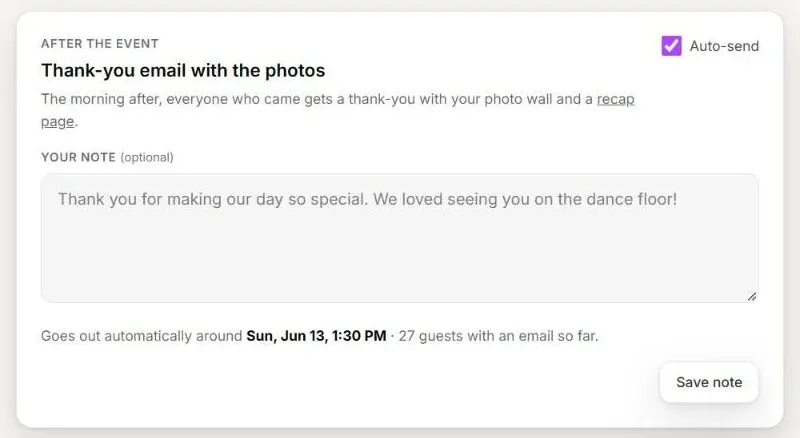
- Tick Auto-send.
- Add a short note in Your note if you like.
- Click Save note.
The card shows when it will go out and how many guests with an email it will reach so far.
Get help writing it
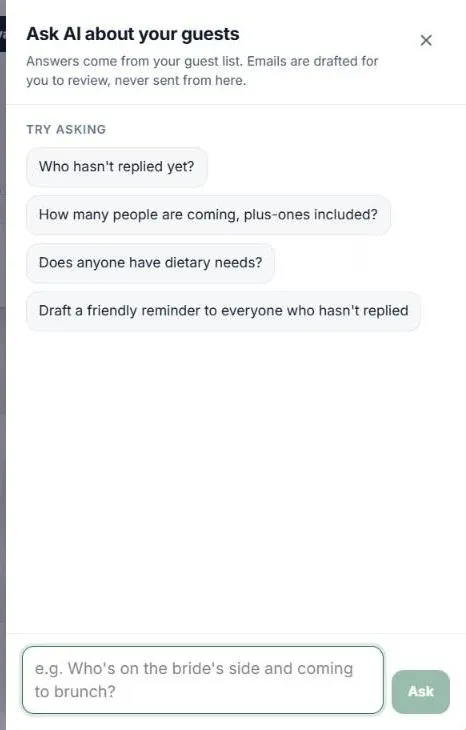
Section titled “Get help writing it”Click Write it with AI to open Ask AI about your guests. Ask questions such as Who hasn’t replied yet?, or ask it to draft a message, such as Draft a friendly reminder to everyone who hasn’t replied. Drafts are for you to review. Ask AI never sends anything itself. Ask AI is included in Premium. See Ask AI about your guests.
Good to know
Section titled “Good to know”- Emails come from your event’s mail address, and guests see them in their inbox.
- Emailing all your guests is included on Pro, event passes and Premium.
- Personal invitations are sent from Guest List, not from Emails.