

Add questions to your RSVP form
All plans
Open your event, click RSVP form in the menu, then click + Add question. Type the question, pick an answer type, mark it as required if you need it, and click Save form.
Video transcript
Here's how to add your own questions to the RSVP form.
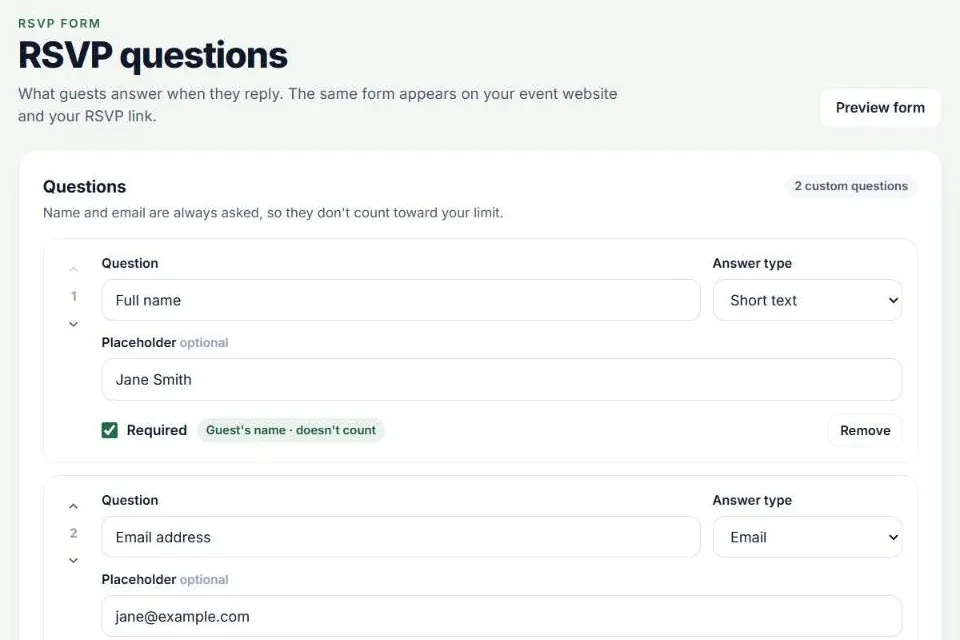
Open your event and click RSVP form. Name and email are always asked, and they don't count towards your question limit.
Click Add question, type your question, and pick an answer type: short or long text, email, phone, number, date, dropdown, multiple choice or checkboxes.
For a dropdown or multiple choice, list the options, one per line. Tick Required if every guest must answer, then click Save form.
Your questions appear on your event page and RSVP link. Free includes two custom questions, Pro thirty, and Premium as many as you like.
You'll find the step-by-step guide at help.rsvpingo.com.
Every RSVP form starts with two questions: Full name and Email address. Add anything else you need to know to plan, such as a meal choice, dietary needs or which hotel guests are staying at. The same form appears on your event website and on your RSVP link.
Add a question
Section titled “Add a question”-
Open your event and click RSVP form in the menu on the left.
-
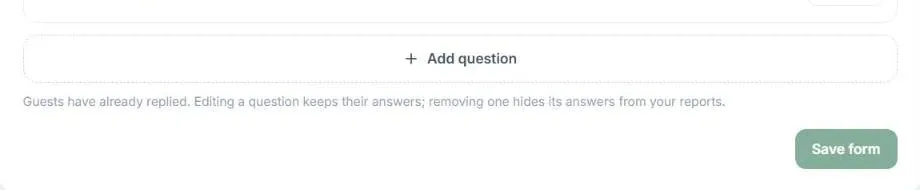
Scroll to the bottom and click + Add question.
-
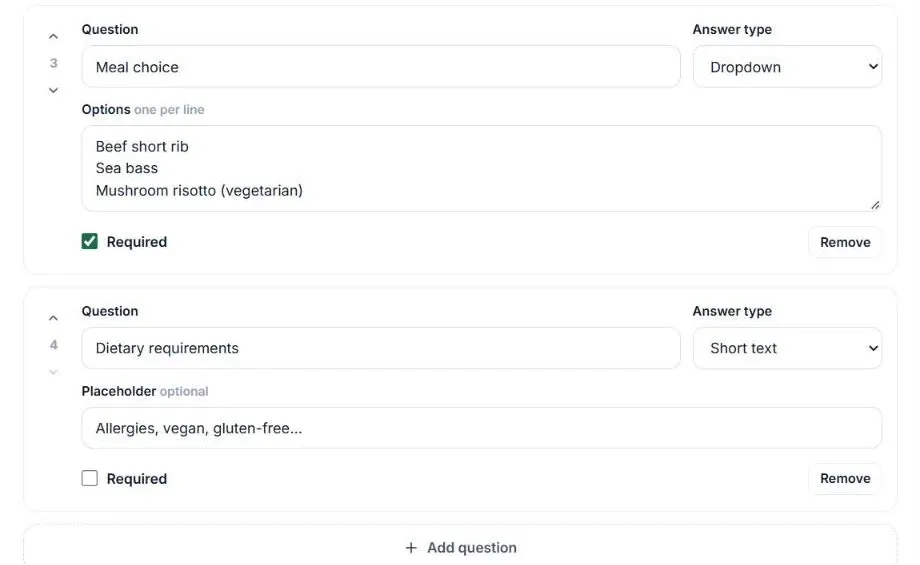
Under Question, type what you want to ask, for example Meal choice.
-
Choose an Answer type:
Answer type Use it for Short text A word or a short line, such as dietary needs Long text A message, a note or a longer answer Email An extra email address Phone A phone number Number Counts, such as how many children are coming Date An arrival or departure date Dropdown One choice from a list, such as a meal Multiple choice One choice, with all options shown Checkboxes Several choices from a list -
For text answers, you can add a Placeholder: example text shown in the empty field, such as Allergies, vegan, gluten-free…. For Dropdown, Multiple choice and Checkboxes, type the Options, one per line.
-
Tick Required if guests must answer before they can send their reply.
-
Click Save form.
To check what guests will see, click Preview form at the top of the page.
Change the order or remove a question
Section titled “Change the order or remove a question”- Use the up and down arrows next to a question to move it.
- Click Remove to delete a question.
How many questions you can add
Section titled “How many questions you can add”Full name and Email address are always asked and don’t count toward your limit.
| Plan | Custom questions |
|---|---|
| Free | 2 |
| Pro and event passes | 30 |
| Premium | Unlimited |
If guests have already replied
Section titled “If guests have already replied”You can still change the form after people have replied:
- Editing a question keeps the answers guests already gave.
- Removing a question hides its answers from your reports.
New questions only appear for guests who reply after you save.
Where the answers show up
Section titled “Where the answers show up”- Guest list: each guest’s answers.
- Catering: Dropdown and dietary questions become meal counts and a dietary list for your caterer.
- Emails: you can email only the guests who gave a particular answer. See Email your guests.