

Choose a template for your event page
All plans
Open your event, click Website, go to the Design tab and click Browse all. Pick a template and it sets up a complete page, with sections, colours, fonts and photos. You can change everything afterwards.
Video transcript
Here's how to change the look of your event page with templates, colours and fonts.
In the Website editor, open the Design tab. A template sets up the sections, colours, fonts and background together.
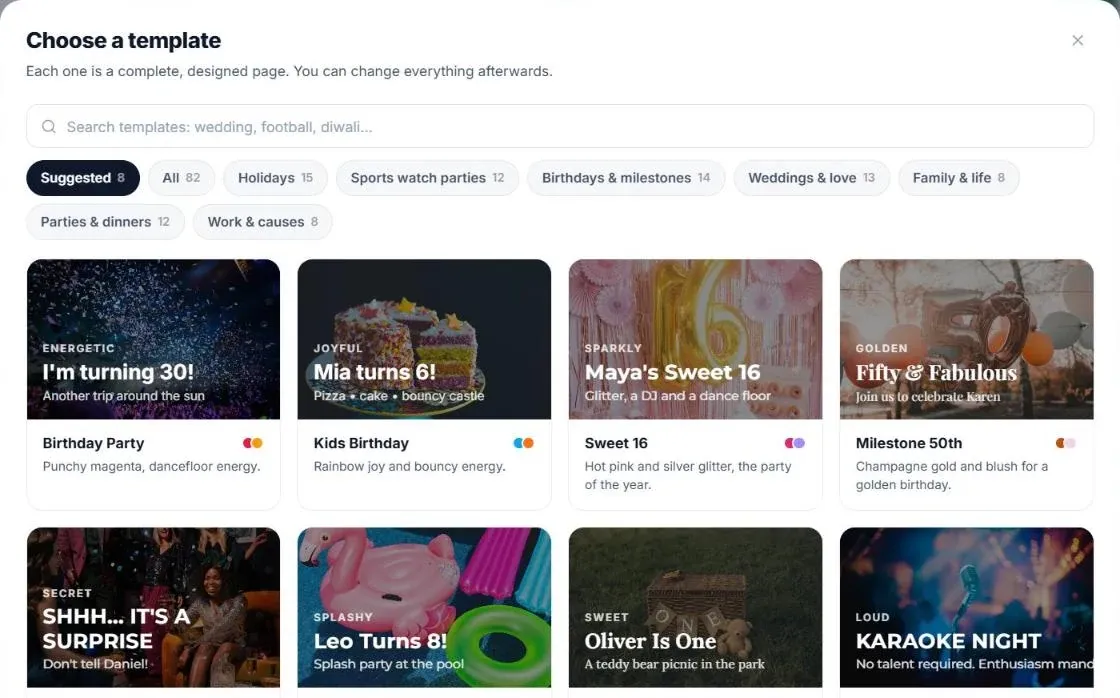
Browse all 82 templates by category, or search for something specific, like wedding, football or Diwali.
Then fine-tune it. Pick a colour pair, or set your own main and second colours, and choose one of five fonts.
Finish with a background texture, from soft glow and confetti to sparkles and fireworks. Click Save when you're happy.
You'll find the step-by-step guide at help.rsvpingo.com.
Pick a template
Section titled “Pick a template”-
Open your event and click Website.
-
Click the Design tab, then Browse all. On a brand-new page you can also click Browse templates.
-
Find a template:
- Suggested shows templates that match your event type.
- Use the category filters, or search for something specific, such as wedding, football or diwali.
-
Click a template to apply it. The preview updates straight away.
-
Edit the text and photos, then click Save.
Template categories
Section titled “Template categories”| Category | Examples |
|---|---|
| Birthdays & milestones | Birthday party, kids’ birthday, Sweet 16, milestone 50th, surprise party |
| Weddings & love | Weddings, engagements, anniversaries |
| Holidays | Seasonal and religious celebrations |
| Sports watch parties | Game-day gatherings |
| Family & life | Baby showers, graduations, reunions |
| Parties & dinners | Dinner parties, karaoke nights, house parties |
| Work & causes | Conferences, fundraisers, team events |
Each card shows two colour dots, the template’s main and second colours, so you can compare palettes at a glance.
Good to know
Section titled “Good to know”- Your event name, date and venue carry over into the new template.
- Applying a template replaces the sections currently on your page. If you’ve already written a lot, add sections one at a time instead.
- After applying a template you can still change any colour, font or section. See Colours, fonts and background.